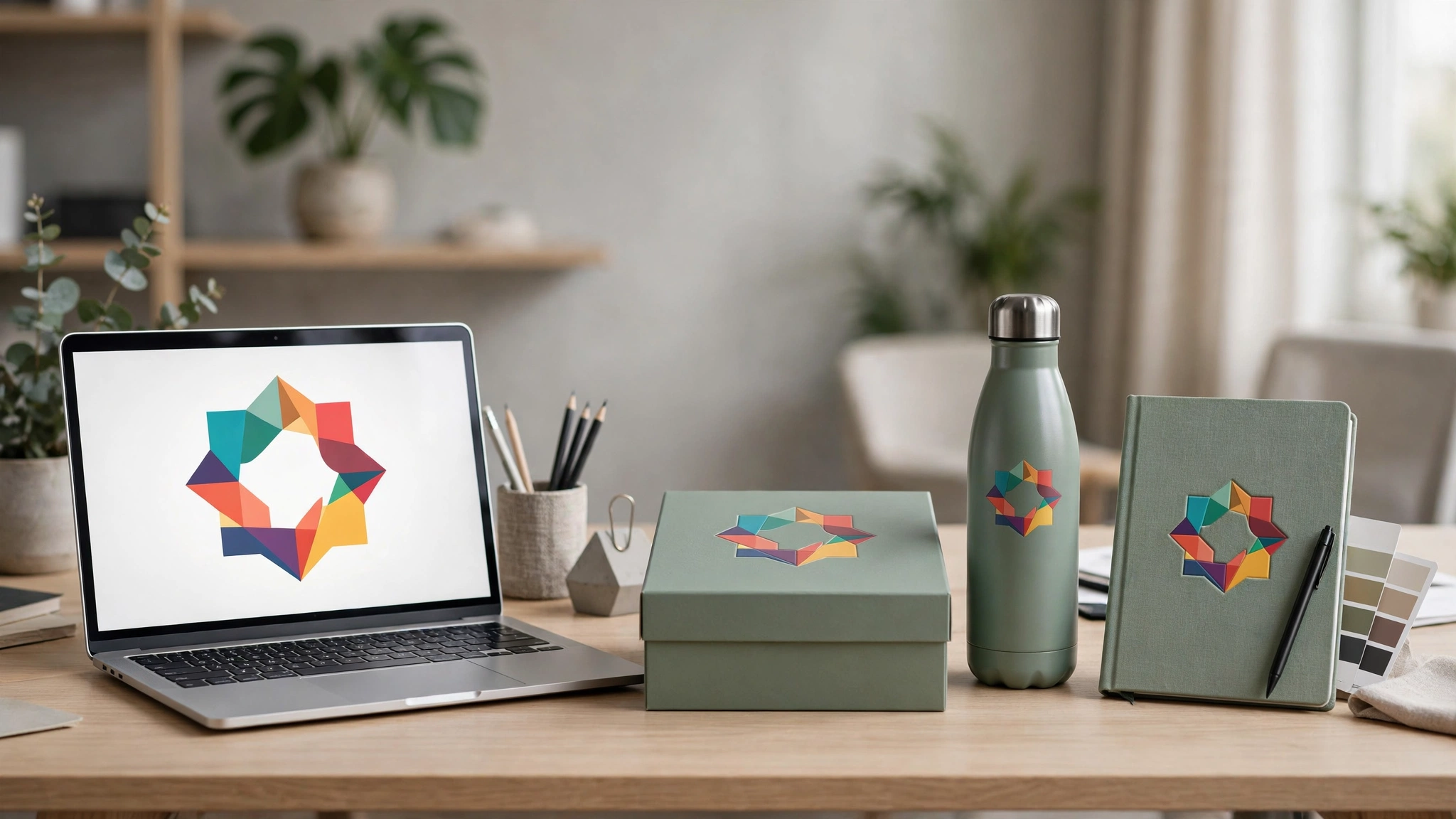
Logo File Formats for Gift Branding: AI, EPS, PNG — What Your Vendor Actually Needs
You have chosen the gift, agreed the budget and confirmed the quantity. Then the vendor sends a short message: “Please share the logo in AI or EPS format.” You open the folder on your laptop and find a PNG from the website, a JPG from a presentation, and a logo pasted into a PowerPoint slide. None of them is an AI or an EPS file, and nobody in the office is quite sure what those letters mean.
This is one of the most common hold-ups in corporate gifting in India, and it is also one of the most avoidable. The logo file is not a formality. It decides whether your brand prints sharp or blurry on a mug, whether the embroidery machine can stitch it on a polo shirt, whether the engraving on a pen set is clean or broken, and whether the order ships on time or sits waiting while someone redraws your logo from scratch. A gift with a badly reproduced logo does the opposite of what corporate gifting is meant to do: instead of making your company look careful and premium, it makes it look careless. That matters most with clients, where a badly branded gift can undo the impression a good gift was meant to create — our guide to Christmas gifts for clients in India explains how to choose client gifts that do not look like advertising.
This guide explains, in plain language, what AI, EPS, PNG and the other logo formats actually are, which one your vendor needs for each branding method, what to send when you do not have the ideal file, and how to check a logo file before you approve a sample. No design software is needed to follow it — just the file your company already has, and a few questions to ask the person who made it.
Why Your Logo File Decides How Good the Gift Looks
A corporate gift is a physical object, and your logo has to be transferred onto it by a machine — a printer, an embroidery head, a laser or a hot-foil press. Each of those machines reads the logo file in its own way, and each one needs the logo in a form it can work with. A file that looks perfect on a website can be useless on a steel bottle, because a website and a bottle are different surfaces read by different processes.
The practical consequence is simple: the wrong file produces a visibly worse gift. A low-resolution JPG printed on a diary cover comes out soft and pixelated. A PNG with a white background printed on a dark T-shirt leaves a white box around the logo. A logo sent as a photograph of a business card cannot be engraved at all, because the engraving machine cannot tell where the logo ends and the card begins. And a logo with a gradient that looks beautiful on screen may be impossible to embroider, because an embroidery machine works with solid thread colours, not gradients.
There is also a time cost. When a vendor receives an unusable file, the order stops. Someone has to redraw the logo, ask for the original, or accept a lower-quality result — and each of those paths adds days. In a festive-season order, where production lines are booked weeks ahead, two or three lost days can be the difference between gifts that arrive before the event and gifts that arrive after it. The Christmas corporate gift delivery deadlines in India show just how early festive orders need to be placed. Getting the file right at the start is one of the cheapest ways to protect your delivery date — and for the full picture of how order timing works, see our guide to how early to order corporate gifts.
Vector vs Raster: The One Distinction That Matters
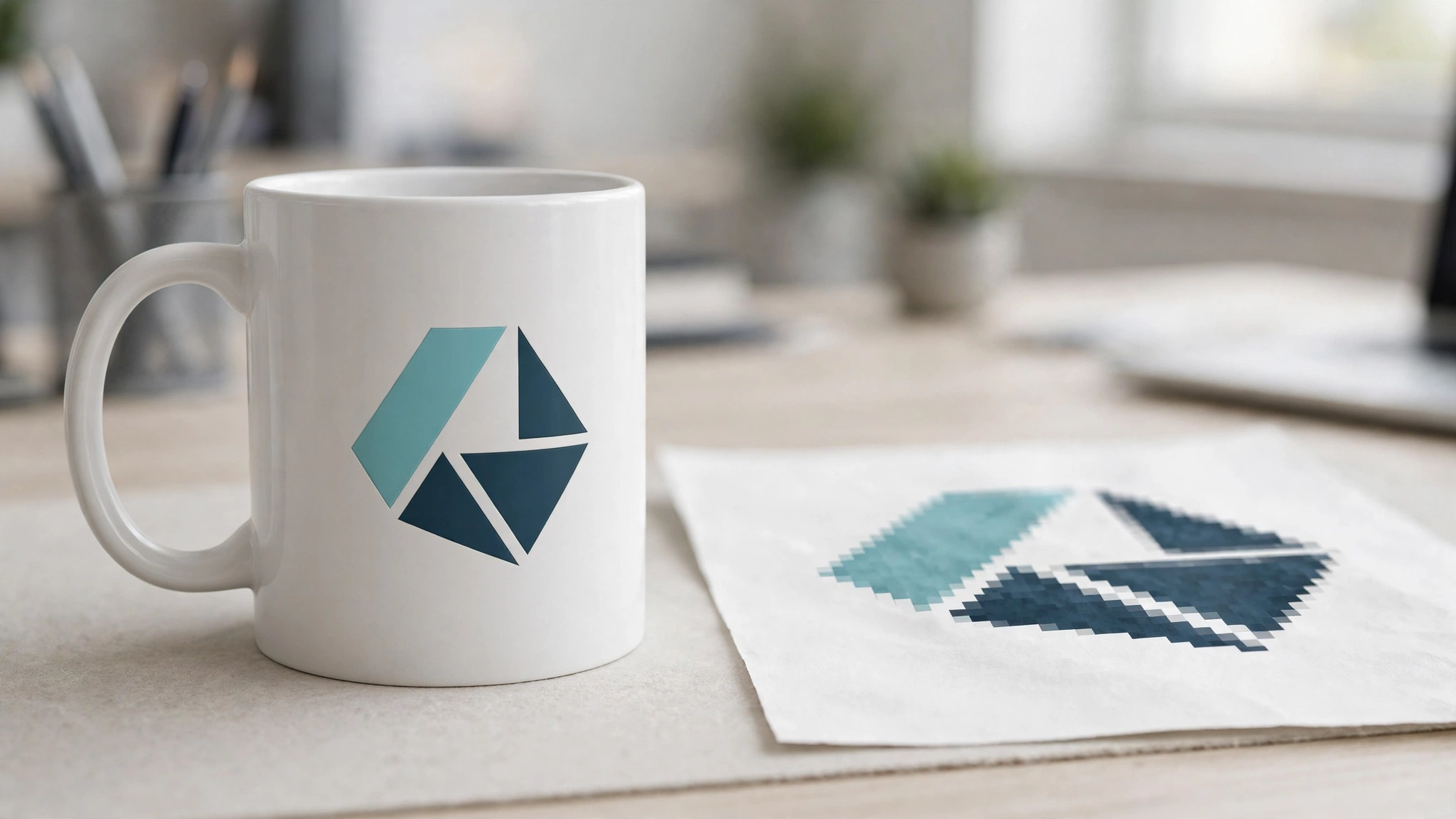
Everything in this guide comes down to one distinction: vector versus raster. If you understand this, you understand logo formats.
A vector file stores your logo as mathematics — lines, curves and shapes described by coordinates. Because the logo is a set of instructions rather than a grid of dots, it can be scaled to any size without losing quality. The same file can print your logo 2 cm wide on a pen and 2 metres wide on a banner, and it will be equally sharp both times. Vector files can also be edited: colours can be changed, parts can be separated, and the file can be opened by the machines that print, engrave and embroider. The common vector formats are AI, EPS, SVG, PDF (when saved from a vector program) and CDR.
A raster file stores your logo as a grid of pixels — tiny coloured squares. It has a fixed resolution, which means it can only be printed as large as its pixel count allows. Enlarge a raster logo beyond its size and the pixels become visible: edges turn jagged, text turns fuzzy, and the logo looks amateur. Raster files are also harder for branding machines to work with, because the machine has to guess where the logo’s edges are. The common raster formats are PNG, JPG/JPEG, TIFF, GIF, BMP and PSD (when it contains pixel layers).
The rule that follows from this is the single most useful sentence in this guide: for branded corporate gifts, always send a vector file first, and use a raster file only when the vendor or the branding method specifically asks for one. A vector file is the master. A raster file is a copy made from the master at a particular size, for a particular purpose.
There is one exception worth knowing. A photographic logo — one that contains a photograph or a complex shaded illustration — cannot be a true vector, because photographs are made of pixels. If your logo is photographic, a high-resolution raster file is the correct file, and the vendor will tell you the resolution they need. This is rare for corporate logos in India, which are almost always vector-friendly wordmarks and symbols, but it is worth checking before you assume.
The File Formats, Explained One by One
AI (.ai) — the designer’s master file
AI is Adobe Illustrator’s native format, and it is the file your logo was almost certainly created in. An AI file holds the full editable logo: every shape, colour, layer and font, exactly as the designer built it. It is a vector format, it scales without limit, and it is the single most useful file you can send a vendor. If your company has one logo file, this is the one to keep safe. Ask your designer, your branding agency or your marketing team for “the AI file of the logo” — they will know what you mean. One caution: an AI file can contain linked images or un-outlined fonts, so a good vendor will confirm it opens cleanly before production. Send it with the fonts converted to outlines if your designer offers that option, because outlined text cannot go missing on another computer.
EPS (.eps) — the universal vector exchange file
EPS stands for Encapsulated PostScript. It is an older vector format, but it remains the workhorse of the print and branding world because almost every piece of production software can open it — including the older machines still used by many engraving and embroidery units in India. An EPS file is a vector file, so it scales cleanly, and it is the format most vendors ask for when they say “send the logo in vector”. Its limitations are that it does not support transparency in the modern sense and it cannot hold some newer Illustrator effects, but for a standard company logo those limitations rarely matter. If your vendor asks for EPS specifically, send EPS. If you have AI, most vendors will accept that instead — but do not argue the point; if their machine workflow is built around EPS, give them EPS.
PDF (.pdf) — the format everyone already has
A PDF can be either vector or raster, depending on how it was made. A PDF exported from Illustrator or CorelDRAW with the logo as vector artwork is a perfectly good vector file, and many vendors accept it happily. A PDF made by scanning a printed letterhead, or by saving a JPG inside a PDF wrapper, is just a raster image in disguise and will not help. The way to tell the difference is to zoom in: open the PDF, zoom to 400% or more, and look at the edges of the logo. If the edges stay smooth and sharp, it is a vector PDF. If they turn blocky and pixelated, it is a raster PDF. A vector PDF is an acceptable substitute when you cannot find the AI or EPS file — but confirm with the vendor that their system reads it as vector before production begins.
SVG (.svg) — the web vector
SVG is the vector format of the web. It is the file your website uses to display the logo crisply on every screen size, and it is a genuine vector file. Some modern print and engraving workflows accept SVG, and it is increasingly useful. However, many traditional gift-branding machines and older production software do not accept it, so SVG is a good backup rather than a first choice for a gift order. Keep it in your logo pack for the website team; send AI or EPS to the gift vendor.
CDR (.cdr) — the CorelDRAW file
CDR is CorelDRAW’s native format, and it is common among print shops and branding vendors across India, where CorelDRAW has a large installed base. If your logo was made in CorelDRAW, the CDR file is your master file and your vendor may actually prefer it to AI. If your logo was made in Illustrator, do not worry about CDR — the vendor can work from AI or EPS. The only mistake is to send a CDR file that was created by importing a low-resolution JPG into CorelDRAW and saving it; that file looks like a vector file but contains only a picture, and it will print like a picture.
PNG (.png) — the best raster file, with one condition
PNG is the most useful raster format for gifting, for two reasons: it supports transparency, and it uses lossless compression, which means it does not degrade every time it is saved. A high-resolution PNG with a transparent background is the correct file for full-colour printing methods such as UV printing and sublimation, where the printer works from pixels. It is also the file you send when a vendor asks for a “PNG with transparent background” for a specific product. The condition is resolution: a PNG must be large enough for the print size. A PNG that is 500 pixels wide will print acceptably at about 4 cm wide and badly at anything larger. As a working rule, ask for a PNG of at least 2,000 pixels on its longest side for gift branding, and larger if the logo will be printed big. A PNG downloaded from your website is almost always too small — websites use small images to load fast, and those files are not print files.
JPG / JPEG (.jpg) — the format to avoid for logos
JPG is the format of photographs, and it is the worst common choice for a logo. It does not support transparency, so a JPG logo always carries a white (or coloured) background box that will show up on any gift that is not white. It uses lossy compression, which creates visible artefacts — fuzzy edges and blotchy colour — around sharp logo edges and text. And JPGs are usually saved at screen resolution, which is too low for print. If a JPG is the only file you have, it is a signal that you need the original from your designer, not a file to send to the vendor. The one legitimate use of a JPG in gifting is as a reference image — “this is what the logo looks like” — sent alongside the real file, never instead of it.
TIFF (.tif) — the high-resolution raster
TIFF is a raster format built for print. It supports high resolution, it can hold CMYK colour, and it does not compress away detail. A high-resolution TIFF with a transparent background is a legitimate print file for full-colour methods, and some vendors request it for photographic or complex artwork. Its drawback is file size — TIFFs are large — and the fact that it is still a raster file, so it cannot be scaled beyond its resolution. For a standard logo, a vector file is better. For a photographic logo or a complex illustration, a TIFF at 300 DPI at the actual print size is the right answer.
PSD (.psd) — the Photoshop working file
PSD is Photoshop’s native format. It can contain vector shapes and text layers, but it is fundamentally a raster working file, and most branding machines cannot use it directly. A PSD is useful only if the vendor’s designer needs to edit the artwork before production — for example, to remove a background or rebuild a damaged logo. Do not send a PSD as your logo file unless the vendor asks for it. And never send a flattened PSD, which is just a single raster image with a designer’s file extension.
Which Format Each Branding Method Needs

Different branding methods read your logo differently, which is why vendors ask for different files for different products. The table below is the quick reference to keep beside your order.
| Branding method | Typical products | File the vendor needs | Why |
|---|---|---|---|
| Screen printing | T-shirts, tote bags, polo shirts | Vector — AI or EPS | The printer separates the artwork into colour screens; it needs clean, editable shapes, not pixels |
| Embroidery | Polo shirts, caps, jackets, laptop bags | Vector — AI, EPS or CDR | The design is digitised into stitch paths; the digitiser traces vector shapes, and gradients or photographic detail cannot be stitched |
| Laser engraving | Pen sets, steel bottles, desk accessories, trophies | Vector — AI, EPS or CDR | The laser follows vector paths; a raster image has to be traced first, and fine detail is often lost |
| Debossing / hot-foil stamping | Diaries, planners, leather goods, premium boxes | Vector — AI or EPS | A metal die is cut from the vector artwork; the die needs exact, clean outlines |
| UV printing | Bottles, mugs, power banks, phone stands | Vector preferred; high-resolution transparent PNG accepted | UV printers can print from raster, but a vector file gives sharper edges and cleaner small text |
| Sublimation | Mugs, T-shirts, mousepads | High-resolution PNG or TIFF (300 DPI at print size) | Sublimation is a photographic process; it prints pixels, so resolution matters more than vector paths |
| Digital / DTG printing | T-shirts, tote bags | High-resolution transparent PNG | DTG printers print raster artwork directly onto fabric; transparency keeps the print clean on coloured fabric |
| Offset / digital printing on paper | Diaries, calendars, gift boxes, cards | Vector PDF or AI; CMYK | Paper printing is a CMYK process, and vector artwork keeps text and logos sharp at any size |
Two practical points follow from this table. First, when you are ordering a mixed kit — say, an embroidered polo shirt, an engraved bottle and a printed diary in one welcome kit — the vendor needs the vector file, because the embroidery and engraving cannot be done from a PNG. One vector file covers the whole kit. Event kits need the same discipline — for tiered event gifting, see our guide to Women’s Day event gifting kits for attendees, speakers and panelists. Second, if your logo uses a gradient, a shadow or a photographic element, tell the vendor before you order. Embroidery and engraving cannot reproduce gradients, and the vendor will need to prepare a simplified single-colour version of the logo. That is a normal part of the job, but it takes time, and it is much better discovered at the quotation stage than at the sample stage. Diaries and desk calendars are the products where cover branding shows up most, so if you are ordering them, read our guide to custom desk calendars and diaries branding for companies before you finalise the artwork.
What to Send Your Vendor: The Standard Logo Pack
The most professional thing you can do — and the thing that makes every future gift order faster — is to keep a standard logo pack and send the whole pack with every order. A vendor who receives the full pack never has to come back and ask for another format, and the order moves without a pause. Here is what the pack should contain:
- The master vector file — the AI file (or CDR if the logo was made in CorelDRAW), with fonts outlined. This is the file the vendor will actually work from.
- An EPS export — made from the master file, for vendors whose workflow is built around EPS. It costs nothing to include and removes a common delay.
- A vector PDF — exported from the master file, for vendors and colleagues who need to view or print the logo without design software.
- A high-resolution transparent PNG — at least 2,000 pixels on the longest side, for UV printing, sublimation and digital printing. Include a second PNG in white (a reversed version) for printing on dark products.
- A one-colour version — the logo in a single solid colour (usually black, plus a white reversed version). Embroidery, engraving and debossing all need this, and having it ready saves a round of back-and-forth.
- The brand colour references — the CMYK values for print, the RGB or hex values for screen, and the Pantone reference if your brand has one. Colour matching is a separate subject, but a vendor who knows your exact brand colour will not guess it from a screen.
If your company does not have a logo pack, ask the person or agency who designed the logo to prepare one. It is a small job for a designer — usually under an hour — and it pays for itself on the first order. Store the pack in a shared folder that HR, procurement and marketing can all reach, and name it clearly, for example “Company Logo — Master Files”. Send the pack with the order itself, at the same time as you confirm quantities — checking the minimum order quantity for corporate gifts in India early avoids a second round of delays. The number of gift orders delayed by a logo file sitting on one person’s laptop is larger than anyone admits.
Common Logo File Problems and How to Fix Them
Most logo problems in gifting fall into a small set of patterns, and each one has a straightforward fix.
The logo is a low-resolution JPG from the website. This is the most common problem. Website images are deliberately small so pages load quickly, and a 300-pixel logo cannot print well on anything larger than a postage stamp. The fix is to ask the designer or agency for the original vector file. If the agency no longer exists, the logo will need to be redrawn — a designer traces the existing logo and rebuilds it as a vector file. That is a normal, billable job, and it is worth doing properly once rather than fighting with a bad file on every order.
The PNG has a white background. A PNG with a white background prints a white box on any product that is not white. On a black T-shirt or a navy diary, the box is obvious and looks unprofessional. The fix is a transparent PNG, exported from the vector master with the background removed. If the only PNG you have has a white background, ask the designer to export a transparent one — it takes minutes from the master file. Do not try to remove the background with a free online tool; the result is usually a ragged edge that looks worse than the box.
The logo has a gradient or a shadow. Gradients and shadows look good on screen and on a website, but embroidery machines stitch solid thread colours, engraving lasers cut single-depth lines, and debossing dies press a single shape. A gradient logo cannot be reproduced by those methods as it stands. The fix is a simplified single-colour version of the logo, prepared by the designer, which the vendor uses for embroidery, engraving and debossing while the full-colour version is used for printing. Agree the simplified version once, keep it in the logo pack, and every future order is straightforward.
The fonts are missing or substituted. If the AI file is sent with its text still live (not outlined), and the vendor’s computer does not have your brand font, the software substitutes a different font and the logo changes shape. The fix is to outline the fonts — convert the text to shapes — before sending the file. Ask the designer to do this, or ask for a version with fonts outlined. If you need the text to stay editable, send the outlined version for production and keep the editable master separately.
The colours are RGB, not CMYK. Screens use RGB colour; print uses CMYK. A logo designed in RGB can look different when printed, because some bright screen colours cannot be reproduced in CMYK ink. The fix is to have the designer supply CMYK values for print, and to approve a printed sample before a large order. For exact brand-colour matching on premium gifts, a Pantone reference is the most reliable standard, and it is worth asking your designer whether your brand has one.
The file is a photograph of a logo. A photo of a business card, a banner or a signboard is not a logo file. It is distorted by perspective, it contains shadows and background, and no branding machine can use it directly. The fix is the same as for the low-resolution JPG: get the original vector file, or have the logo redrawn. Sending a photograph wastes the vendor’s time and your own, because the answer will always be the same.
The logo is inside a Word document or a PowerPoint slide. Logos pasted into Office documents are usually low-resolution copies, and extracting them does not restore the quality that was lost when they were pasted in. The fix, again, is the original file. If the Office document is genuinely the only place the logo exists, the logo needs to be redrawn — and that is a good reason to build the logo pack described above and never be in this position again.
How to Get the Right File When You Don’t Have It
If you have read this far and realised that your company does not have a vector logo file, here is the practical path, in order of preference.
First, ask the person who made the logo. That is usually a branding agency, a freelance designer, or an in-house designer. Ask specifically for “the AI or EPS file of the logo, with fonts outlined, plus a high-resolution transparent PNG”. Designers keep master files, and this request is routine for them. If the designer has moved on, ask the marketing team or the agency that handles your website — the website’s SVG logo is a vector file, and it can be a starting point, though it may need cleaning up for print.
Second, check the brand guidelines. Companies that have brand guidelines usually have a logo pack attached to them, often in a shared drive or with the marketing team. The guidelines document itself may contain the logo as a vector PDF, which a vendor can sometimes work from. Even a PDF of the guidelines is useful, because it contains the colour references and the approved logo versions.
Third, have the logo redrawn. A designer can trace your existing logo and rebuild it as a clean vector file. For a simple wordmark or symbol, this is a small job. For a complex logo, it takes longer and costs more, and the designer will need a good reference — the clearest, largest version of the logo you have. Ask for the redrawn file in AI and EPS, plus the PNG exports, so you end up with the full logo pack. Agree the redraw before you place the gift order, not after, because the redraw time is part of the order’s lead time.
Fourth, if the order is urgent, ask the vendor what they can do. Many corporate gift vendors in India have in-house designers who can redraw a simple logo or clean up a usable file, sometimes at no extra charge for a straightforward case. This is a reasonable fallback for a simple logo on a small order, but it is not a substitute for owning your own master file. A vendor-redrawn logo belongs to the vendor’s workflow, and you may not receive the file — so treat it as a rescue, not a solution, and build the logo pack afterwards.
One thing not to do: do not download a logo from a Google image search and send it to the vendor. Apart from the quality problem, the file you find may be another company’s version of a similar logo, an outdated version of your own, or a file with usage restrictions. Always work from your company’s own files.
A Pre-Order Checklist Before You Approve the Sample

The sample is the moment when a logo file problem becomes visible, and it is also the last cheap moment to fix it. Before you approve a sample, run through this checklist:
- The logo is sharp at the actual size on the product — zoom into a photograph of the sample, or look at it closely in person, and check the edges of letters and fine lines.
- The logo is the right size and in the right position, with enough clear space around it. A logo crammed into a corner or printed too small looks like an afterthought.
- The colours match your brand. Compare the sample against a printed brand reference, not against your phone screen — screens and print show colour differently.
- There is no white box around the logo on a coloured product. If there is, the file was a non-transparent raster, and the vendor needs the transparent PNG or the vector file.
- Small text in the logo is still readable. Taglines and website addresses inside a logo often become unreadable at gift sizes. If the tagline cannot be read, ask the vendor to use a version of the logo without it.
- On embroidered items, the stitching is clean and the fine detail holds. Very small text and thin lines do not embroider well; the digitiser may need a simplified version.
- On engraved items, the lines are clean and unbroken. If the engraving looks patchy, the file may have been a traced raster rather than a true vector.
- The logo looks the same across every item in the kit. A welcome kit where the logo is one colour on the diary and a different colour on the bottle is a sign that different files were used for different items.
Consistency across a kit matters even more in tiered partner gifting — see our guide to gifts for channel partners in India for how tier-wise planning works. If anything on this list fails, do not approve the sample. Ask the vendor what file or setting caused the problem, and fix the file rather than accepting a compromised result. Approving a bad sample locks the problem into the full production run, where it is far more expensive to fix.
Common Mistakes to Avoid
Sending the first file you find. The logo on the website, in a presentation or in an email signature is a copy made for a screen, not for print. Always go to the master file first.
Assuming the vendor can “just fix it”. Vendors can work around a bad file, but every workaround costs time and quality. A vendor who redraws your logo is guessing at details the original designer knew, and the result is rarely as good as the original.
Approving a digital mock-up without checking the file. A mock-up on screen can look perfect while hiding a low-resolution file, because the mock-up itself is a screen image. Ask the vendor to confirm the file is vector and print-ready before production, not just that the mock-up looks good.
Using different logo versions across products. If the diary uses the 2023 logo and the bottle uses the 2025 logo, the kit looks inconsistent and unprofessional. One logo pack, one version, every product.
Forgetting the one-colour version. Many teams only keep the full-colour logo, and then discover at the sample stage that embroidery and engraving need a single-colour version. Keep it in the pack from the start.
Ignoring colour until the sample arrives. Brand colours shift between screen and print. Agree the CMYK or Pantone values with the vendor at the quotation stage, and approve a physical sample for any order where colour accuracy matters.
Frequently Asked Questions
What file format should I send my logo in for corporate gifts?
Send a vector file — AI or EPS — as the first choice. A vector file scales to any size without losing quality and can be used by every branding method: printing, embroidery, engraving and debossing. Add a high-resolution transparent PNG alongside it for printing methods that work from pixels, such as UV printing and sublimation.
Is a PNG good enough for printing a logo on gifts?
Yes, but only if it is high-resolution and has a transparent background. A PNG of at least 2,000 pixels on its longest side works well for UV printing, sublimation and digital printing. It does not work well for embroidery or engraving, which need vector paths, and a small PNG downloaded from your website will print blurry at gift sizes.
What is the difference between AI and EPS?
AI is Adobe Illustrator’s native, fully editable master file — the file your logo was created in. EPS is an older, universal vector format that almost every print and branding machine can open. Both are vector files and both print sharply. If you have the AI file, send that; if your vendor’s workflow is built around EPS, send the EPS export. Most vendors accept either.
Can I use a JPG logo for corporate gifts?
Avoid it. JPG does not support transparency, so your logo will carry a white background box on any product that is not white, and its lossy compression creates fuzzy edges around text and sharp lines. JPGs are also usually saved at screen resolution, which is too low for print. If a JPG is the only file you have, ask your designer for the original vector file.
What does “print-ready” logo mean?
A print-ready logo is a vector file (AI, EPS or vector PDF) with fonts converted to outlines, colours set for print (CMYK), and no missing linked images — or, for photographic printing, a raster file at 300 DPI at the actual print size with a transparent background. It means the vendor can send the file straight to production without redrawing or repairing it.
Which logo format is best for embroidery?
A vector file — AI, EPS or CDR — in a single-colour version of the logo. The embroidery digitiser traces the vector shapes to create stitch paths, and gradients or photographic detail cannot be stitched. If your logo has a gradient, your designer should prepare a simplified one-colour version for embroidery.
What if I don’t have the original logo file?
Ask the designer or agency who created the logo first — they keep master files and this is a routine request. Check your brand guidelines and the marketing team’s shared drive for a logo pack. If the file genuinely cannot be found, have a designer redraw the logo as a vector file from the clearest version you have, and ask for the full pack (AI, EPS, transparent PNG, one-colour version) so the problem never recurs.
The Short Version
If you remember nothing else from this guide, remember this: keep a vector master file of your logo (AI or EPS), send it to your gift vendor with every order, and include a high-resolution transparent PNG and a one-colour version alongside it. That single habit removes the most common delay in corporate gifting, protects the quality of the finished gift, and makes every future order faster. The logo is the part of the gift the recipient actually looks at. It deserves a file that does it justice. Once the branding is approved, let recipients know the gift is coming — our corporate gifting announcement email templates give HR teams five ready-to-use formats for exactly that.
Natural CTA
If your next gift order is waiting on a logo file, sort the file before you place the order — it is the cheapest way to protect both the quality of the gift and the delivery date. Ask your designer for the AI or EPS master file with a high-resolution transparent PNG and a one-colour version, keep the pack where HR, procurement and marketing can all reach it, and send the whole pack with every order. If you are planning a branded order and want help choosing the right products and branding method for your logo, Arrow Gifter’s team can walk through the options with you — share your logo file and your occasion, and get a quotation that already accounts for the branding your logo needs.
1 Comment